



Everyone wants clients nowadays: founders, creators, coaches, ecommerce brands. What’s the best way of finding them though?
Well, what I did when I was first starting out was going to a random lead gen youtube channel, watch 3-4 videos, understand basic cold outreach and start blasting people with thousands of emails and DMs per week.
I soon got tired because nobody actually cared about my offer, or because they saw that same cold email from other 124 people in the past week. If you’re doing cold email the old way you’re exactly the same as those other 124 people out there.
You need to be different, you need to stand out, but in order to do so you have to try stuff and understand the ins and outs of the process.
So here’s what I tried last week instead of writing cold email number 125.
I started with the basics: the actual list.
I built the list myself, out of the one place where you get one of the best qualities possible and that is LinkedIn Sales Nav. Sales Nav picks the people, Apify will extract a CSV.
Both have a free window, so the first list costs you nothing. Sales Navigator is free for the first month if you never signed into it, and Apify gives you $5 of usage on the free plan.
You just need 3 steps, about 25 minutes of your precious time, and you end up with a CSV of real people who match your filters. No terminal, no code.
Subscribe to No BS AI. One real copy-pasteable build like this every week.
Step 1: build the list in Sales Navigator (15 minutes)
There are plenty of places to get leads from: Apollo, ZoomInfo, Clay, Clutch, plain LinkedIn search. I’ve tried most of them and Sales Navigator is the one I keep coming back to, because the filters are good out of the box and because you can have it free for a month.
Go to the Sales Navigator page and start the free month. It asks for a card, so put a reminder in your calendar around day 28 if you’re not planning to keep it.
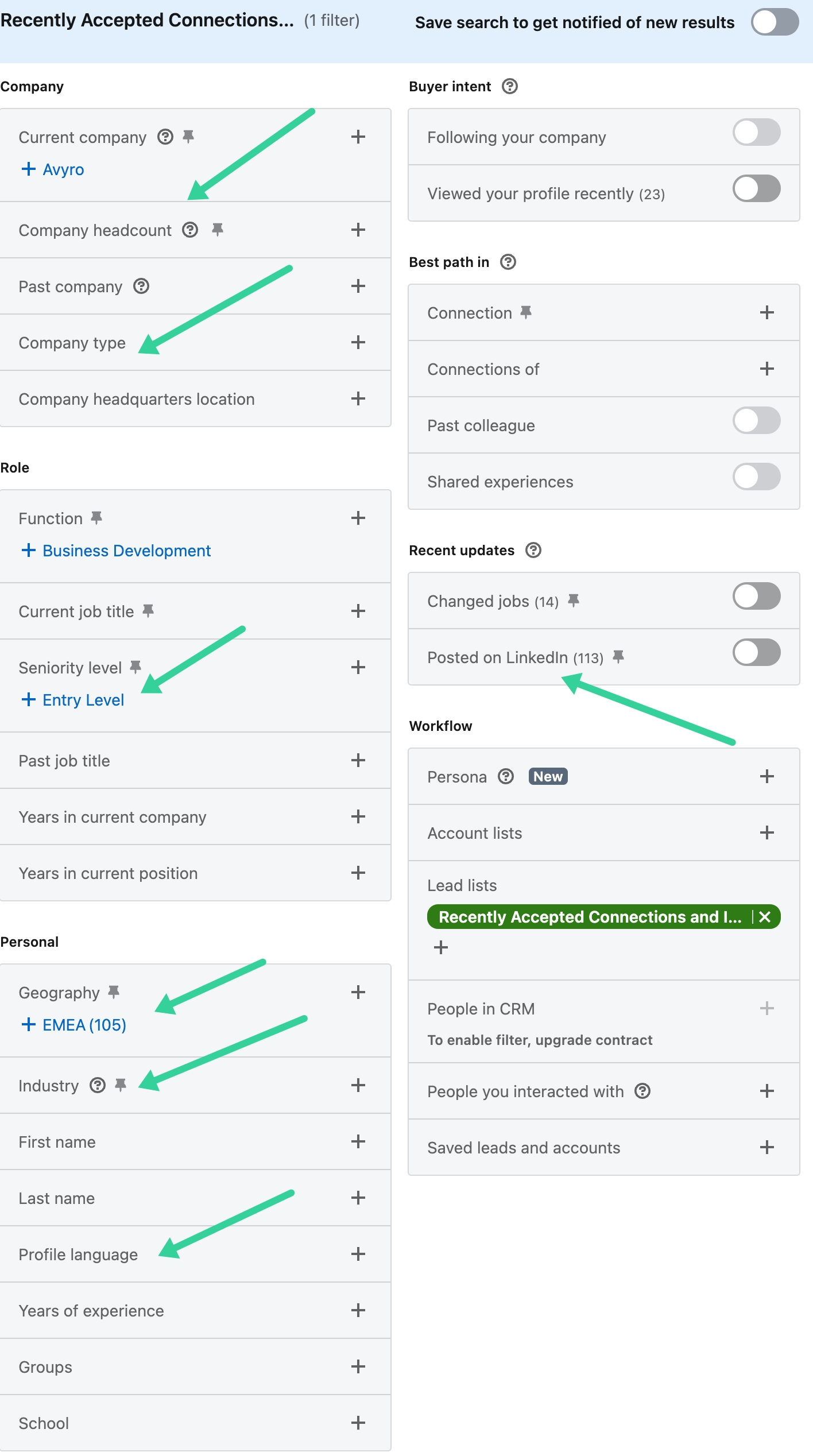
Then build one search, using the filters straight off your ICP page:
Job title, in the words they’d put on their own profile
Seniority level
Company headcount
Geography
Industry
If you haven’t written your ICP yet, check out my recent “How to sell an offer to the right people in 67 minutes” article where I have a nice prompt to narrow down your ICP.
Look, filters are only as good as the description you’re filtering for, and “small businesses who want to grow” is not the way.
When the results look roughly right, meaning you narrowed down your ICP to ideally 1k people or less, save the search and copy the URL out of the address bar. Keep that URL, it’s the input for step 3.
By the way, here’s what you might tweak, I marked the most important fields with arrows.
One thing for you to know. Sales Navigator will not hand you that list as a file. LinkedIn’s own help page says you cannot export lead information from Sales Navigator into a CSV or XLS file, and there’s no tier where that changes.
So the strategy is: you filter out with Sales Nav, and export in Apify.
Step 2: create your Apify account (5 minutes)
Now, you’ll need Apify to extract that list from the Sales Nav pane.
Apify will help you here. Apify is a marketplace of small cloud programs called Actors. Each one scrapes a specific thing. You give it a search or a URL, it gives you back structured data. No code involved, you fill in a form and press start.
Sign up at apify.com. The free plan is $0 a month with $5 of platform credit and it doesn’t ask for a card.
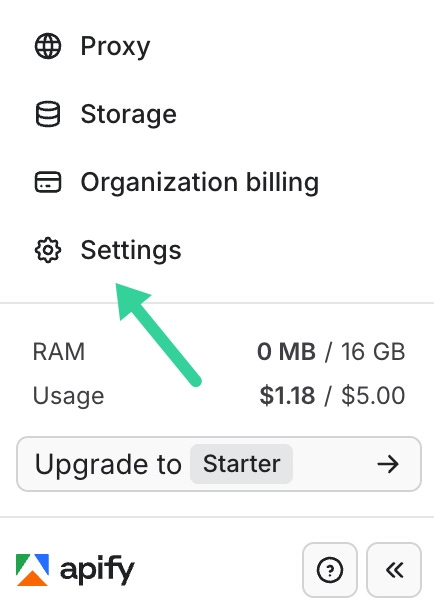
Once you’re in, click Settings at the bottom of the left sidebar. Your remaining credit is on the Usage line right underneath it.
While you’re in there, find Limits. There’s a maximum monthly usage figure that sits completely separately from your credit. If it’s set to zero, every run you start gets rejected with “Monthly usage hard limit exceeded” while your $5 sits there untouched, and nothing in the error tells you where to look. I lost half an hour to that one.
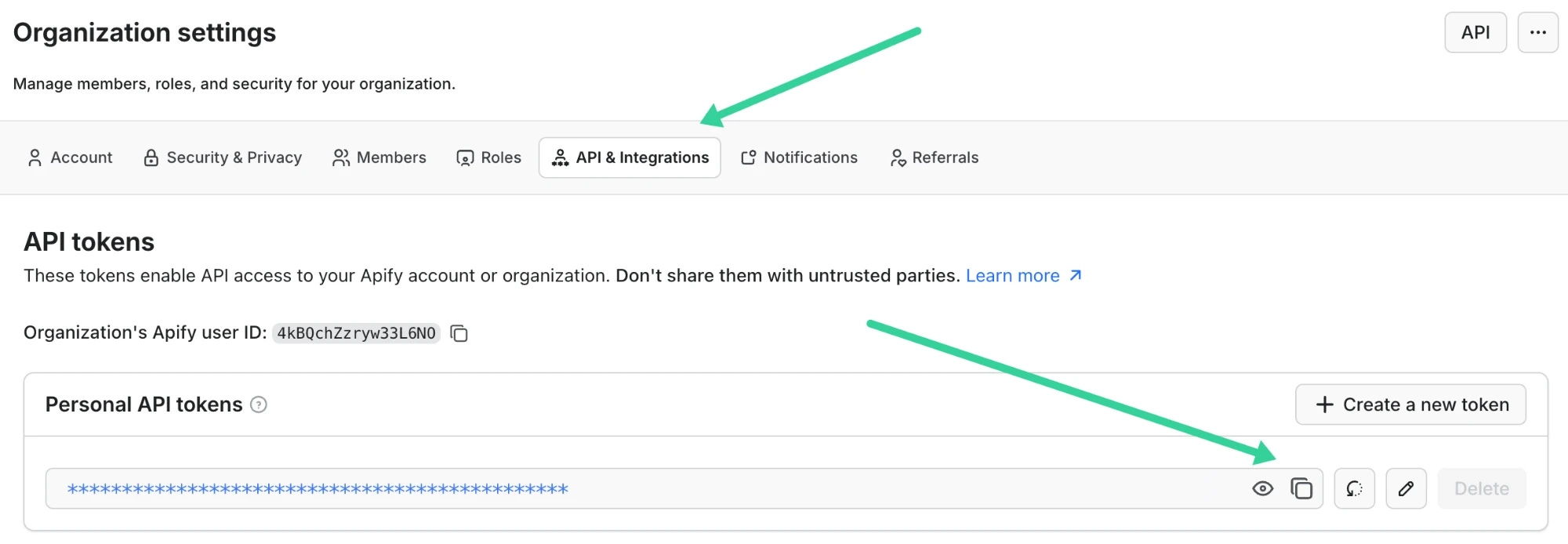
At the top of the settings page, open the API & Integrations tab. Your personal API token is sitting there behind a row of asterisks, hit the copy icon on the right, or the eye icon if you want to see it first. Keep it somewhere safe and never paste it into a public page.
Running an Actor by hand in the browser works fine without it, but you’ll want it the moment you want Claude or n8n running the thing for you, which is a different article.
Step 3: run the scraper on your saved search (5 minutes)
This is the Actor I used a couple times:
bestscrapers/linkedin-sales-navigator-scraperThere are a lot of Sales Navigator scrapers on Apify and most of them want your LinkedIn session cookie, which means handing over the thing that keeps you logged in.
I’ve had an account restricted before by giving it to a tool and I’m not doing that again. This one is cookieless and it doesn’t need a Sales Navigator seat of its own, it just reads the filters out of the URL you saved.
Then 4 things, in order:
Paste your saved search URL from step 1 into the Search URL field. It decodes the title, company, location, industry and keyword filters straight out of that URL, so the search you already built in step 1 is the whole configuration.
Cap the results before the first run. Run 10 or 20 rows, not the whole thing. A filter you got slightly wrong is much cheaper to find on 20 rows than on 2,000.
Open that test output and read the columns. You want a name, a title, a company and a profile URL sitting in every row. If a column you need is empty on the test, it’s going to be empty on all of them.
Run the full search, then download the dataset as CSV.
Then open the CSV in Sheets and read down the name column. Eliminate all of the rows without a real name attached. We eventually need to speak with people and not companies.
What you’ve got now
A CSV of people who actually match your filters, with a name, a title, a company and a LinkedIn URL on each row. Your $5 of free Apify credit covers roughly 500 leads at that rate, and the Sales Navigator month is free, so the first list genuinely costs you nothing.
It’s a raw list though. Sales Navigator matches your filters and nothing more, so expect a share of the rows to sit neatly inside those filters and still be completely wrong for you. Sorting that out is the next job, and it’s the one that decides whether any of the messages you send land.
Subscribe to No BS AI. One real copy-pasteable build like this every week.
Talk soon,
Ilya